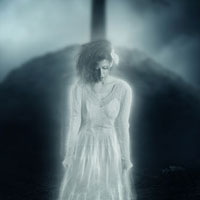
Members Area Tutorial: Create A Dark Ghostly Scene Photo Manipulation
In this tutorial I’ll show you how to create a dark ghostly scene. You’ll learn how to manipulate different images together and blend them correctly, use layer mask, make lighting, retouching, extract hair, work with group and more.
Final Image
As always, this is the final image that we’ll be creating:

Resources Used In This Tutorial
Step 1
Create a new layer and fill it with black. I start with a medium size but feel free to make your own. Open ground stock. I take the part on the right (use Lasso Tool) and drag it into our black canvas with Move Tool (M). Press Cmd/Ctrl+T to narrow it horizontally as shown below:


Step 2
I use some adjustment layers to change color of this ground. On ground layer, go to New Layer-New Adjustment Layer-Hue/Saturation:

Color Balance:

Curves:

I use soft black brush to erase the left side of this ground on Curves layer mask as I want it darker than the rest:

Step 3
Open sky stock. I use Retangular Marquee Tool to make a selection on this part of sky and place it above the ground after resizing it down. You can see that I choose a part with a bright middle section as I want it to be main light source in our destination photo.


Now click the second button on the bottom of Layer Pallete to add layer mask for this layer. Take soft black brush with big size (about 200 px but it depends on your document size) and erase rough edge of this sky part:

Step 4
There are some noise on sky part and I don’t want it. It might look ok at this stage but it will bother you when you adjust color, change lighting…etc…To fix it, on sky layer, go to Filter-Noise-Dust & Scratches:


The sky now looks smoother:

Step 5
I use an adjustment layer with Clipping Mask for sky to darken it a bit. On sky layer, go to New Layer-New Adjustment Layer-Curves:

I use soft black brush to remove effect on the middle part of sky where the light source will be set (on Curves layer mask):

Step 6
Make a new layer and I use soft black with opacity about 30-50% to paint on the sides of sky to darken it. Change the mode to Soft Light 100%:


Create a new layer and take soft white brush painting on the center of sky to brighten it. I put the mode to Soft Light 100%:


Step 7
In this step we’ll make a big grave. Open hill stock. Extract the hill part, position it on the right of ground and downsize it:


Duplicate this layer and choose Edit-Transform-Flip Horizontal then move it to the left:

I name these layers as “grave part 1″ and “grave part 2″.
Step 8
Add layer mask for these grave layers and use black brush with hardness about 50% to remove hard edges at the bottom parts:

Change brush to grasses ones. I choose this brush:

Press F5 to change brush direction to fit the grave stroke slope to remove unwanted parts. You can see two screenshots below as an example:


My result:

Step 9
To edit grave parts together, make these layers selected then press Cmd/Ctrl+G to make group for them. Change the mode of this group from Pass Through (default mode group) to Normal 100%:

On grave part 2 layer, go to New Layer-New Adjustment Layer-Hue/Saturation:

Because the mode of this group changed to Normal 100% (no Pass Through) so this Hue/Saturation layer only impacts the layers inside this group (graves):

Step 10
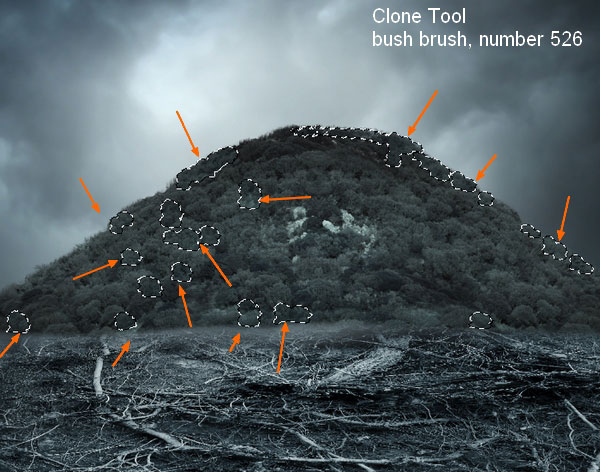
Make a new layer within this group and I use Clone Tool with grasses one. I choose brush with number 526 to remove any hard edges remained:

Step 11
In this step we’ll make shadow for this grave. As I mentioned in a previous step, the main light source will be placed from the middle top so the grave must have a shadow in front of viewers. Make a new layer under grave ones. Hold Cmd/Ctrl while clicking grave thumbnail layers to load their selection:

Fill this selection with black, apply Flip Vertical (Edit-Transform-Flip Vertical) then move it under grave bottom:

Lower opacity to 50% then choose Filter-Blur-Gassian Blur:


Add layer mask for this shadow and blur the top with soft black brush, opacity about 40-50%:

Step 12
Make a new layer above clone one. Use soft black brush to paint over the grave avoiding the contour to darken it. Set the mode to Soft Light 100%:

Create two layers and use soft white brush to paint along the countour of grave to brighten it. Change the mode to Soft Light 100%:

Step 13
I want to darken ground part which near the grave to blend them better. Make a new layer on the top and use soft black brush to paint on this part and put the mode to Soft Light 100%:

Step 14
Open door stock. Cut the door part and position it in front of the grave:


Add layer mask and use black brush with hardness about 55-60% to trim the outside part of this door:

Step 15
I use two adjustment layers with Clipping Mask to make color of the door fit the scene.
Hue/Saturation:

Color Balance:


Step 16
Open gravestone stock. Take only top part and position it above the big grave:


Use layer mask to blend its bottom with the grave:

Call this layer “gravestone”.
I don’t make shadow for this gravestone as it will be hidden from model (we’ll see in next steps).
Step 17
I add a Color Balance layer (Clipping Mask) to alter color of this gravestone:


Step 18
I use Inner Shadow effect to add some back light for this part. Double click gravestone layer, choose Blending Options:

Result:

Step 19
Open skeleton stock. First I extract skeleton from black background then take some bones from it to place on the ground. I use transform tool (Cmd/Ctrl+T) to make different movements for these bones:


I name these layers from “bone 1″ to “bone 11″.
Make groups for all of bones layers (remember to change group mode to Normal 100%).
Make a new layer under bone ones. I use soft black brush with opacity 60-70% and very small size (10-12 px) to paint under bones to create their shadow on the ground:

Step 20
To change color of the bones, I use Hue/Saturation and Color Balance layer (within bone group):


Step 21
I make changes about brightness of some bones by adding layers with Clipping Mask for them. I darken the long bone near the left foreground with a Curves layer:

I brighten a part of the bone near the right foreground with soft white brush and Soft Light mode 100% because it’s the part that will get some light from ghost:

I make a bone near the midground brighter with Curves:

Create a new layer on the top of this group with Soft Light mode 100%. Load selection of all the bones by holding Cmd/Ctrl+clicking their thumbnail layers. Then use soft black brush to paint on selected parts to darken them:


Step 22
Open skull pack. I’ll be using following skulls but feel free to make your choice.

First position skull 1 near midground after cutting it out:

Make shadow for it as done with grave:

Step 23
I change color and brightness of skull 1 with Hue/Saturation and Color Balance (Clipping Mask):


Step 24
To brighten the right side of this skull (where will catch a little light from ghost), I use Dodge tool. Make a new layer (Clipping Mask), change to Overlay 100% and fill with 50% gray:

Take Dodge Tool with Midtones range and Exposure about 20% to brighten the part below. You can see how I apply this tool with Normal mode:

Overlay mode:

Step 25
Extract skull 2 and situate it near the right edge of ground after changing its direction:

I make shadow on ground for this skull as done with another elements. Then I make a new layer (under skull 2) and paint at its bottom to create a shadow underneath:

Step 26
I add a Hue/Saturation (Clipping Mask) for this skull:

I change light and shadow of this skull with Burn Tool on a new layer with same settings in step 24. I use Burn Tool with Midtones range and Exposure about 20%:

Step 27
Add skull 3 to the left of ground and make shadows as we did with skull 2:

Reduce brightness and saturation of this skull with Hue/Saturation:

Step 28
Open stake stock. I take only this part and paste it into right edge of foreground then use layer mask to blend its bottom with ground:


Make shadow of stake on ground:

Step 29
Change color and reduce brightness of the stake with Color Balance and Curves (Clipping Mask):


I use black brush to reduce the dark in front of the stake and remove the dark on the top of it (on Curves layer mask):

Step 30
I use Burn Tool on a new layer to darken the right edge of this stake:

Step 31
Isolate crow and place him onto the stake, add two shadows:

Step 32
I use two adjustment layers (Clipping Mask) for the crow.
Hue/Saturation:

Color Balance:


Step 33
I make two new layers in order to change light and shadow of crow. On the first which changed to Soft Light mode 100% I use soft black brush to paint in front of him to make it darker:

On the second I use Dodge Tool to brighten the top and body contour, Burn Tool to darken the rest:

Step 34
In this step we’ll add some mist to the scene. Make a new layer on the top. Set foreground and background to #bccfde and #678ca3. Go to Filter-Render-Clouds:

Lower opacity to 70% and use layer mask to remove or reduce mist intensity on some areas below:


Step 35
Open model stock. First I use Polygonal Lass Tool (you can use the method you’re familliar with) to create a selection for model as shown below:

Choose Refine Edge with settings below:

Choose Refine Radius Tool and start painting over hair edges to make them revealed:


Double click background layer to unlock it and now it can be editable. Still keep selection, click on layer mask button and we have result:

Result on another background:

Step 36
Position extracted model after applying layer mask at the center of picture:

Use layer mask to blur model bottom as shown below:

Step 37
I apply some effects from Layer Style for model to make her look mysterious:


I find some unwanted light effect on model after this step. To fix it, right click the right of model layer to reveal layer effects in panel and choose Create Layers:

Now Outer Glow and Inner Glow appear in two new layers, under and upper model one:

Add layer mask for these layers and remove unecessary light effect:

Step 38
I change color of model with a Hue/Saturation layer (Clipping Mask):


Step 39
I brighten model face, neck and a dress part with soft white brush on a new layer changed to Soft Light mode 100%:

Step 40
In this step we’ll add “ghost” effect for model eyes. Make a new layer (non-Clipping Mask), use soft brush, about 20 px with color #92c0cb to spot on picture then lower brush size to 7-8 px and change brush color to a brighter one (#cdf6f3) to make a highlight:

Use Cmd/Ctrl+T to transform it and place above the right eye:

Duplicate this layer and move to the left eye, apply Flip Horizontal:

Use layer mask to blur the left eye part as it’s in darker area:

I name them “eye effect 1″, “eye effect 2″.
I create a new layer under eye ones and use Burn Tool to darken around eyes to make a stronger contrast for them:

Step 41
To make model look like “ghost” more, I’ll add glowing effect for her. Make a new layer on the top and load model selection (Cmd/Ctrl+click model thumbnail layer), go to Edit-Stroke:


Apply Gassian Blur with 5 px:

Use layer mask to remove or blur glowing effect around model:


Step 42
Create a new layer, use Lasso Tool to make a selection around model, set feather =20:

Fill with color #e9e9e6:

Lower opacity to 70% and blur this effect with layer mask:


Step 43
Open light lines stock. Choose this part with Retangular Marquee Tool and place it onto model dress bottom, transform it:


Press Cmd/Ctrl+Shift+U to desaturate this part:

Change the mode to Screen 50% and use layer mask to remove the parts below:

Name this layer “light lines 1″
I duplicate this layer several times and make them into different movements for another parts of dress to create “dress creases”. Also I copy another light parts from this stock (I won’t indicate in details but you can easily choose the part you like) and repeat the same method with “light lines 1″. I used 8 layers for this effect and change opacity of some layer as Screen mode 70%:

Step 44
Move smoke 1 stock into our picture, locate it on dress bottom, desaturate and transform it:

Change the mode to Screen 100% and erase hard edge with layer mask:

Duplicate three times, transform them and move them to another dress parts:

Use smoke 2 in same way to make more details for “ghost dress”:

I use 6 layer for this effect (4 for smoke 1, 2 for smoke 2).
Step 45
Make group for light lines and smoke layers and change the mode to Screen 100% (it’s very important to keep the same effect as before grouping). I call this group “ghost dress”.
Now create some adjustment layers within this group to change color and brightness of the layers inside:
Color Balance:

Curves:


Step 46
Create a new layer on the top. Take bat brushes, number 108, 315, 208, color #2a383f, lower brush opacity to 30%-40% to paint on the sides and top of sky:

Step 47
To change the light focus, I use a layer on the top with Radiant Gradient. I choose default colors (black and white):

Change the mode to Soft Light 100% and use layer mask to remove dark effect on the parts below:


Step 48
Create some adjustment layers on the top to make color of the scene change.
Gradient Map:

Change the mode of this Gradient Map layer to Soft Light 100%.
Photo Filter 1:

Photo Filter 2:

Color Balance:

Hue/Saturation:

Step 49
To turn the scene from day to night, I make a new layer, fill with black, then change the mode to Soft Light 100%:

Add layer mask to blur the part beside model and in front of grave, crow:

I continue darkening the sides of picture with soft black brush on a new layer, Soft Light mode 100%:

Step 50
I use a Curves layer to make the picture more contrasted:

Erase dark contrast on selected parts:

Step 51
I use a new layer and Dodge Tool to make some reflected light from ghost, sky to environment around (bones, crow, stake):


Step 52
I use a new layer and soft brush with color #b6c4c7 to paint in the sky middle to brighten it a little. My favorite mode is Soft Light 100%:

Step 53
Final step: Press Cmd/Ctrl+Shift+Alt/Option+E to merge all layers. Go to Filter-Blur-Gassian Blur and apply radius with 5 px:

Add layer mask to remove blur effect on model, stake, crow, ground parts near model:

And We’re Done!
You can view the final outcome below. I hope that you enjoyed this tutorial and would love to hear your feedback on the techniques and outcome.
Member File Download
Download the original .psd file for this tutorial here:

 Members Area Tutorial: Create a Dark Photo Manipulation Using Photoshop CS6 New Features
 Members Area Tutorial: Photo Manipulate an Atmospheric Warrior Scene
 Members Area Tutorial: Create An Emotional Sunset Scene Photo Manipulation

Leave a comment
0 Comments:
No comments have been posted yet. Be the first!
Leave a Comment: