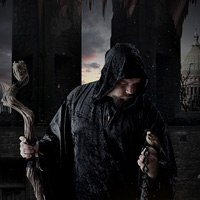
Members Area Tutorial: Create a Dark Photo Manipulation Using Photoshop CS6 New Features
This tutorial gives a you a quick overview about a few of the New features and properties in Photoshop CS6. We will work within the new software to create a dark, complex photo manipulation.
-We will have a quick walk-through about the new features of layers pallet and the new grouping system. As the tutorial progresses we will be more detailed about it.
-Working with the new Patch tool using along with the Mask tool.
-Batch color correction.
-Working with Stamp tool and its properties.
-This tutorial also explains new changes in the properties of few tools, as well as much more interesting tips ans tricks in Photoshop CS6.
Final Image
As always, this is the final image that we’ll be creating:

Resources Used In This Tutorial
- Court Hall – faestock
- Priest – jagged-eye
- Dome 1 – sxc.hu
- Dome 2 – sxc.hu
- Statue – sxc.hu
- Pillar – sxc.hu
- Curtain – sxc.hu
- Dead Tree Brush – brusheezy
- Dust – psdbox.com
- Sparrow – sxc.hu
- Lantern – sxc.hu
- Door – psdbox.com
- Chain – sxc.hu
- Dry Leaves – sxc.hu
- Cage Brush – falln-stock
- Gothic Brush – Brusheezy
- Wall Texture 1 – sxc.hu
- Wall Texture 2 – sxc.hu
- Wall Texture 3 – sxc.hu
Step 1
Before getting into the tutorial I would like to talk about the New changes done to the Layers Pallet in Photoshop CS6.
- Usually when we work on some work with tons of layers it gets messy and difficult to get back to certain kind of layer with some specified effect applied to it which you would like to change.
Photoshop CS6 has made that search easy by introducing the New Search Option in the Layers pallet where you can browse through the layers easily without spending much time in scrolling down the whole layers pallet.
1) We are provided with few varieties of Filter types to pick from such as Kind, Name, Effect, Mode, Attribute and Color. The search for the layers can be finished within no time with these filter types.

2) In this step we will discuss about “Kind” Filter Type. As the name of the filter states, this search option is used to filter through the layers based on their kind.
-This category has search filters that allow you to browse through the layer kind such as Pixel Layers, Adjustment Layers, Type Layers, Shape Layers, Smart Objects.

3) In the Name Filter you just have to type in the name of the layer in the search bar to pick out the layer you are looking for.

4) In the “Effect” Filter you are given a drop down list with Effect Names through you can browse through the layers with specified effect.

5) With the Mode Filter you can browse the layers according to the Blending Modes. So this makes it easier to find the layer to which you would like to change the Blending Mode.

6) Layer can also be search by their Attributes. You are provided with a list of attributes by which you can optimize the search for layers.

7) Another New option provided with CS6 is assigning colors to Layers and Folders. By assigning colors you can differentiate the layers and folders precisely without any delusion.
-We will get in touch with more of the New Layer pallet properties as the tutorial progresses.

Step 2
In this step we are going to create an old hallway for the scene.
1) Create a new canvas in Photoshop with Width=2590px and Height=4000px and import the image of the old hallway on to the canvas. Then cut the pillars section and move it upwards as shown.

2) Now cut the upper portion of the wall as shown using the Lasso Tool (L) and move the portion upwards to fill the gap between the wall and the pillars.

Step 3
In this step we will be color correcting and also be discussing another new feature of the Layers pallet.
1) Another exciting feature in layers pallet is that you can add the Adjustment layer not just to the layers but also to the Folders. This reduces the repeated use of Adjustment layers for layers in a group.
- Now group the wall and cut portion of the wall into a single folder. Then create an Adjustment layer of Exposure to the Court Wall folder and set the Exposure Level to -0.76, Offset Value to -0.0124 and Gamma Correction to 0.75.

2) Now right click on the folder and choose a color to differentiate it among the layers in the pallet.

3) Duplicate the Exposure Adjustment Layer and clip it to the Pillars layer.

Step 4
In this step we are going to make use of another exciting tool called the Patch Tool to remove the sun shade on the pillar as we are creating a dark scene.
1) Using the Mask Tool (M) mask the area that is to be cloned and set the Feather of the mask to 3px.

2) Now select the Patch Tool (J) and set the Patch to Content-Aware. Then by using the Patch Tool (J) move the mask to the left pillar as shown and leave it to see the magic.

Step 5
In this step we are going to create a medieval period city backdrop behind the court hall.
1) Cut the image of the tomb from the image and place it on the left side of the scene as shown.

2) Then similarly add another tomb on the right side.

3) Now by using the Curves Adjustment layer color correct the Tomb2 which is placed on the right side of the scene.

4) Group the tomb layers into a folder and give the folder a color.

Step 6
In this step we will be adding sky to the backdrop.
- Import the image of the Sunset sky onto the working canvas and place it beneath all the layers and position it as shown.

Step 7
1) Using the Dry Tree brush paint the dead tree using the black color in front of the second tomb as shown.

2) To blend all the layers together add a Hue/Saturation Adjustment layer above all the layers and set the Saturation level to -50.

Step 8
In this step we are going to introduce the main character (Priest) into the scene.
1) Cut the image of the priest from its original image and import it on to the working canvas and position it as shown.

2) Using the Hue/Saturation reduce the Saturation level of the priest layer to -50.

3) To blend the character precisely with the lighting of the scene, paint the shadows as shown on the character.

Step 9
In this step we will be working with the Stamp Tool (S) and its properties to remove the chain which the priest is holding in his hands.
1) Select the Stamp Tool (S) and set the ‘Sample’ to “All Layers”.

2) Now create a new layer and clone out the chain from the bottom and on the top. Leave the middle section of the chain as it will be covered by the lantern which will be added in the proceeding steps.

Step 10
In this step we will be creating a chain in the hands of the priest.
1) Cut the image of the chain from the main image and position it in the hands of the priest as shown.

2) With the chain layer selected go to Image>Adjustments>Exposure and set the Exposure to -0.43, Offset= -0.0164 and Gamma Correction= 0.86.

3) Now duplicate the chain layer and turn it into a silhouette using the Levels and place it under the chain layer and move it slightly towards the right. Then add a Gaussian Blur of Radius 4.5px to the shadow layer.

4) Now add an Exposure Adjustment layer to the Character Folder and set the Exposure level to -0.28 and Gamma Correction to 0.82.

Step 11
the Soft Round Brush paint the black soft border to the whole scene as shown.

Step 12
Now paint shadow on the second dome as shown using the Soft Round Brush.

Step 13
In this step we are going to create a door in the background.
1) Import the image of the door on to the canvas and position it on the left side of the of the wall as shown behind the priest.

2) Using Brightness/Contrast reduce the Brightness of the door to -29.

3) Now by using the Exposure Adjustment layer to the door set the Exposure to -1.26 and Gamma Correction to 0.62.

Step 14
In this step we are going to create a pillar and a statue placed on it in the background.
1) Cut the image of the pillar from its original image using the Pen Tool (P). Then import it on to the working canvas and place it in the background as show.

2) Create a new layer above the pillar layer. Then by using the Soft Round Brush paint the shadows as shown on the right side of the pillar.

3) Now import the image of the statue on to the canvas and place it on the pillar as shown.

4) Again by using the Soft brush paint the shadow on the statue as shown in a new layer.

5) Now group the pillar and statue layers into a single Folder and name it as Statue. Then create a Hue/Saturation Adjustment Layer to the Statue Folder and set the Saturation level to -55.

6) Create an Exposure Adjustment layer to the Statue Folder and set the Offset value to -0.0248 and Gamma Correction to 0.81.

Step 15
In this step we will be adding a lantern to the end of the chain, which the priest is holding in his hand.
1) Import the image of the lantern on to the canvas and position it by the end of the chain as shown.

2) Now create an Exposure Adjustment layer to the lantern layer and set the Exposure to -1.04 and Gamma Correction to 0.81. Then reduce the Opacity of the Adjustment layer to 76%.

Step 16
In this step we are going to add dust flying around in the scene.
1) Import the image of the Dust on to the canvas and set its Blending Mode to Screen.


2) Similarly add more dust in the scene as shown.

Step 17
In this step we will place a sparrow resting on the hands of the priest.
1) Import the image of the sparrow on to the canvas and position it on the left hand of the priest as shown. The by using Hue/Saturation set the Saturation level of the sparrow to -56.

2) Now create a new layer above the sparrow layer and paint the shadows on the sparrow as shown.

Step 18
In this step we are going to create a cage flying off from the scene by some force.
1) Create a new layer and paint the bird cage using the cage brush and position it on the right side of the scene as shown.

2) With the Cage layer selected go to Filter>Blur>Motion Blur and add a Motion Blur with Distance 27px and angle set to 45. This creates a dynamic force effect on the cage.

Step 19
In this step we will be creating the light glow emitting from the lantern.
1) Select a mask in the shape of the lantern glass using the Pen Tool (P). Then create a new layer and paint in the selection with the color #f6b00a with the Soft Round Brush.

2) Now paint the color #f6cc0a on the previously painted color.

3) Reduce the brush size slightly and paint white color in the centre and then set the Blending Mode of the layer to Hard Light.

4) Now by using the Pen Tool (P) create a mask as shown to paint the directional light. Then create a new layer and by using the color #f6b00a paint in the selection as shown.

5) Then by using Soft Eraser (E) erase the sharp edges of the directional light and set its Blending Mode to Hard Light and Reduce the Opacity to 72%.

6) Now create another new layer for the final glow and paint the huge glow using the color #f6b00a. Then set its Blending Mode to Hard Light and reduce its Opacity to 32%.

Step 20
In this step we will be creating an old and worn-out curtain hung from the top in the background.
1) Import the image of the Curtain on to the canvas and create a mask as shown using the Lasso Tool (L) and erase the unwanted area of the curtain.


2) Now by using the Curves color correct the Curtain as shown.

3) Create a Hue/Saturation adjustment layer to the curtain layer and set the Saturation to 72 and Lightness to -21.

4) Again create another Hue/Saturation Adjustment layer and set the Saturation level to -69.

Step 21
Switch off all the layers except the curtain layer and save it as save it as .PSD file. We will need this in the next step.

Step 22
In this step we will be creating a design printed on the curtain.
1) Create a new layer above the curtain layer and paint the gothic design using the gothic brush. Then go to Filter>Distort>Displace and select the curtain.psd file which we previously saved and press Open, the design will align itself with the folds of the curtain which makes it look natural.

2) Then set the Blending Mode of the Design Layer to Overlay and set its Opacity to 44%.

Step 23
In this step we will create dry leaves flying around in the scene.
1) Import the image of the Coffee Leaves and select the Blue layer from the Channels Pallet. The go to Image>Calculations and select Blue from the Channel drop down lists and press OK to create an Alpha layer in the Channels Pallet.

2) With the Alpha layer selected go to Image>Adjustments>Levels and set the levels as shown to make the image a complete silhouette.

3) Now select the image layer in the Layers pallet and go to Select>Load Selection and select Alpha 1 from the Channel drop down list and press OK to generate a perfect mask around the leaves. Then hit Delete to erase the unwanted white background.

4) Import the image of the leaves on to the canvas and place them on the right side bottom corner as shown.

5) Import the image of the leaves on to the canvas and place them on the right side bottom corner as shown.

6) Similarly add more leaves to the scene as shown.

7) Now add an Exposure Adjustment layer to the Leaves Folder and set the Gamma Correction to 0.58.

Step 24
In this step we will be creating a destroyed wall, located closer to the scene.
1) Import the image of the broken wall and place it as shown in the scene. This wall will act as the base model.

2) By using the Hue/Saturation reduce the Saturation level of the wall to -87.

3) Now import the image of the stone wall texture and cut it in the shape of the broken wall.

4) Then import a gravel wall texture and place it as shown on the wall.

5) Now by using the Hue/Saturation reduce the Saturation level of the gravel wall texture to -68.

Step 25
In this step we will be doing the final touches on the wall.
1) Merge all the wall textures and add a Gaussian Blur of Radius 3.5px.

2) Then by using the Hue/Saturation set the Hue to 30 and Saturation to 7.

3) Now by using Exposure set the Exposure to -0.87 and Gamma Correction to 0.46.

And We’re Done!
You can view the final outcome below. I hope that you enjoyed this tutorial and would love to hear your feedback on the techniques and outcome.
Member File Download
Download the original .psd file for this tutorial here:

 Members Area Tutorial: Create a Spooky Paranormal Photo Manipulation
 Members Area Tutorial: Photo Manipulate a Futuristic Female Android
 Members Area Tutorial: Combining Extraction Techniques to Create a Unique Photo-Manipulation

Leave a comment
0 Comments:
No comments have been posted yet. Be the first!
Leave a Comment: