How to Create a Graphics Tablet in Photoshop
Hi there. In the following tutorial your will learn how to create a Graphics tablet in Photoshop.
Final Image
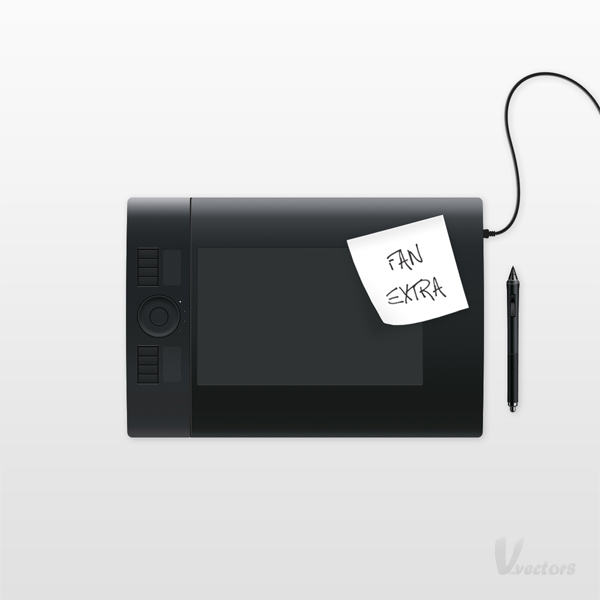
As always, this is the final image that we’ll be creating:
Step 1
Open Photoshop and hit Control + N to create a new document. Enter all the data shown in the following image and click OK. Enable the Grid (View > Show > Grid) and the Snap to Grid (View > Snap To > Grid). For the moment you need a grid every 5px. Go to Edit > Preferences > Guides, Grid & Slices and focus on the Grid section. Enter 5 in the Gridline Every box and 1 in the Subdivision box. Also, set the color of the grid at #696969. Once you set all these properties click OK. Don’t get discouraged by all that grid. It will ease your work later. You should also open the Info panel (Window > Info) for a live preview with the size and position of your shapes.

Step 2
Go to the Layers panel. By default, Photoshop created a locked layer named "Background". Hold Alt and double click on it. This will immediately unlock your layer. Double click on it and the Layer Style window will open. Go to the Gradient Overlay section and enter all the data shown below.

Gradient Overlay Blending Options Settings
Blend Mode: Normal
Opacity: 100%
Style: Linear
Angle: 90 degrees
Scale: 100%

Step 3
For most of my images I made the grid invisible. I considered that it made the images a bit incomprehensible. Your grid should still be visible. I will let you know when you can disable it. Pick the Rounded Rectangle Tool and go to the top bar. Set the radius at 10px then draw a 710 by 480px vector shape. The color is not that important. A simple red will be ok. Make sure that this fresh path is still selected and go to Edit > Transform > Warp. Now, focus on the top bar. First, select Bulge from the Warp drop-down menu. Next, check the Orientation button (pointed by the arrow) and enter 1.5 in the Bend box. In the end your path should look like in the second image.

Step 4
Keep the Grid and the Snap to Grid enabled. Reselect the Rounded Rectangle Tool, draw a 590 by 490px vector shape and place it as shown in the first image. The Snap to Grid should ease your work. Again, the fill color is not very important. A simple black will be ok. In the images I also lowered the opacity of this path so that you can distinguish it from the rest of the shapes. Make sure that this new path still selected, go again to Effect > Transform > Warp then focus on the top bar. First, select Bulge from the Warp drop-down menu. Next, check the Orientation button and enter 0.5 in the Bend box. In the end your path should look like in the second image.

Step 5
For the moment you can disable the Grid (View > Show Grid or Control + "). Focus on the Layers panel. Hold Control and click on the red path. This will load a simple selection around the red path. Hold Control, Shift and Alt then click on the black path. This will load a new selection with the area of intersection of these two paths. With this selection still active move to the next step.

Step 6
First, delete the black vector shape created in the fourth step. You won’t need it anymore. Hit Shift + Control + Alt + N to create a new layer. Set the foreground color at #111111 and pick the Paint Bucket Tool. Now. Simply click inside your active selection to fill it with this dark color.

Step 7
Focus on the red path. Go to the Layers panel and double click on it to bring the Layer Style window. Go to the Gradient Overlay section and enter the properties shown below. The white percentage numbers stand for Location.

Gradient Overlay Blending Options Settings
Blend Mode: Normal
Opacity: 100%
Style: Linear
Angle: 90 degrees
Scale: 100%

Step 8
Reselect the path created in the previous step and go to the Layers panel. Right click on it and go to Rasterize Layer. Again, right click on this rasterized layer and go to Convert to Smart Object. Now, double click on this Smart Object and go to Filter > Noise > Add Noise. Set the Amount at 0.55% then check the Gaussian and the Monochromatic boxes.

Step 9
Re-enable the Grid (View > Show Grid or Control + "). Pick the Rectangular Marquee Tool and make a 135 by 480px selection as shown in the first image. With this selection still active go to Select > Modify > Smooth. Set the radius at 1px and click OK. This will add discrete roundness effect for your selection. Now, select the Smart Object edited in the eight step. Move to the bottom of the Layers panel, Hold Alt and click on the Add layer Mask button. Obviously this will mask your shape. Only the content covered by the selection will remain visible. In the end you should have a discrete roundness effect as shown in the third image.

Step 10
Disable the Grid (View > Show Grid or Control + "). Move to the black vector shape and double click on it to open the Layer Style window. Add the Inner Shadow and the Gradient Overlay properties shown below.

Inner Shadow Blending Options Settings
Blend Mode: Normal
Opacity: 100%
Angle: -180 degrees
Distance: 3px
Choke: 0%
Size: 0px

Gradient Overlay Blending Options Settings
Blend Mode: Normal
Opacity: 100%
Style: Linear
Angle: 90
Scale: 100%

Step 11
Reselect the vector shape created in the previous step and duplicate it (Control + J). Select this copy and go to the Layers panel. First, lower the Fill to 0% then open the Layers Style window. Disable the Gradient Overlay then edit the Inner Shadow as shown below.
Inner Shadow Blending Options Settings
Blend Mode: Normal
Opacity: 100%
Angle: -180 degrees
Distance: 2px
Choke: 0%
Size: 0px

Step 12
Select the two vector shapes edited in the last two steps. Right click on one of these shapes and click on Merge Layers. Right click on the resulting layer and click on Convert to Smart Object. Make sure that this new Smart Object is selected and go to Filter > Noise > Add Noise. Set the Amount at 0.55% then check the Gaussian and the Monochromatic boxes.

Step 13
Re-enable the Grid (View > Show Grid or Control + "). Pick the Rounded Rectangle Tool and set the radius and 5px. Create a 450 by 275 vectors shape and place it as shown in the first image. Set the fill color at #2f3334 then convert it to a Smart Object. With this new Smart Object selected go to Filter > Noise > Add Noise. Set the Amount at 0.5% then check the Gaussian and the Monochromatic boxes. Open the Layer Style for this Smart Object then add the Inner Shadow and the Stroke properties shown below.

Inner Shadow Blending Options Settings
Blend Mode: Normal
Opacity: 100%
Angle: -90 degrees
Distance: 1px
Choke: 0%
Size: 0px

Stroke Blending Options Settings
Size: 1px
Position: Outside
Blend Mode: Normal
Opacity: 100%
Fill Type: Gradient
Style: Linear
Angle: -90 degrees
Scale: 100%

Step 14
For the following steps you will need a grid every 1px. Go to Edit > Preferences > Guides, Grid & Slices and enter 1 in the Gridline Every box. Pick the Rectangle Tool and create a 42 by 75px vector shape. Switch to the Rounded Rectangle Tool and set the radius at 1px. Create a 38 16px vector shape and place it as shown in the following image. Again, the Snap to Grid will ease your work. For the moment the fill colors aren’t very important.

Step 15
Let’s add some extra details for the vector shapes created in the previous step. Start with the large one. Set the fill color at #0f0f0f and add the first Drop Shadow show below. Duplicate this vector shape (Control + J). Select this copy and hit Control + [ to send it backward. Open the Layer style for this copy, go to the existing Drop Shadow and set the Angle at 90 degrees. Duplicate this second vector shape (Control + J). Select this copy, send it backward (Control + [ ) and open its Layer style. Remove the Drop Shadow add the Stroke properties shown in the final image.
Drop Shadow Blending Options Settings
Blend Mode: Normal
Opacity: 75%
Angle: -90 degrees
Distance: 1px
Spread: 0px
Size: 1px

Drop Shadow Blending Options Settings
Blend Mode: Normal
Opacity: 75%
Angle: 90 degrees
Distance: 1px
Spread: 0px
Size: 1px

Stroke Blending Options Settings
Size: 1px
Position: Outside
Blend Mode: Normal
Opacity: 100%
Fill Type: Color

Step 16
Focus on the other vector shape created in the fourteenth step. Convert it to a Smart Object then add the Inner Shadow and the Gradient Overlay properties shown below.
Inner Shadow Blending Options Settings
Blend Mode: Normal
Opacity: 100%
Angle: 90 degrees
Distance: 1px
Choke: 0%
Size: 0px

Gradient Overlay Blending Options Settings
Blend Mode: Normal
Opacity: 100%
Style: Linear
Angle: 90
Scale: 100%

Step 17
Select the Smart Object created in the previous step and make three copies. Place them as shown in the first image then select all four layers and merge them. Select the resulting layer, convert it to a Smart Object and go to Filter > Noise > Add Noise. Set the Amount at 0.55% then check the Gaussian and the Monochromatic boxes.

Step 18
Select all the layers created in the last four step and group them (Control + G). Duplicate it then place these two groups as shown in the following image.

Step 19
Pick the Rounded Rectangle Tool and set the radius at 3px. Create two, 36 by 71px vectors shapes and place them as shown in the following image. Fill them both with white and add the stroke properties shown below. Reselect the top, vector shape and lower its opacity to 4% then select the bottom, vector shape and lower its opacity to 3%.
Stroke Blending Options Settings
Size: 1px
Position: Outside
Blend Mode: Normal
Opacity: 100%
Fill Type: Color

Step 20
Pick the Ellipse Tool, hold Shift and create an 83px circle. Set its color at #25292b, convert it to a Smart Object and go to Filter > Noise > Add Noise. Set the Amount at 0.55% then check the Gaussian and the Monochromatic boxes. Next, add the layer style properties shown below.

Inner Glow Blending Options Settings
Blending Mode: Normal
Opacity: 100%
Size: 2

Bevel and Emboss Options Settings
Style: Inner Bevel
Technique: Smooth
Depth: 75%
Direction: Up
Size: 10px
Soften: 0px
Angle: -90 degrees
Altitude: 21 degrees
Highlight Opacity: 70%
Shadow Opacity: 0%

Stroke Blending Options Settings
Size: 2px
Position: Outside
Blend Mode: Normal
Opacity: 100%
Fill Type: Color

Step 21
Reselect the Smart Object created in the previous step and duplicate it. Lower the Fill to 0% then open the Layer Style window and enter the Inner Shadow properties shown below.
Inner Shadow Blending Options Settings
Blend Mode: Normal
Opacity: 100%
Angle: 90 degrees
Distance: 8px
Choke: 0%
Size: 10px

Step 22
Reselect the Smart Object edived in the previous step and duplicate it. Lower the Open the Layer Style window and enter the Stroke properties shown below.
Stroke Blending Options Settings
Size: 2px
Position: Inside
Blend Mode: Normal
Opacity: 100%
Fill Type: Color

Step 23
Pick the Ellipse Tool, hold Shift and create a 34px circle. Set its color at #25292b, convert it to a Smart Object and go to Filter > Noise > Add Noise. Set the Amount at 0.5% then check the Gaussian and the Monochromatic boxes. Next, add the layer style properties shown below.

Inner Shadow Blending Options Settings
Blend Mode: Normal
Opacity: 100%
Angle: -90 degrees
Distance: 1px
Choke: 0%
Size: 0px

Stroke Blending Options Settings
Size: 2px
Position: Outside
Blend Mode: Normal
Opacity: 100%
Fill Type: Color

Step 24
Select all the layers created in the last four step and group them (Control + G). Place it as shown in the following image.

Step 25
Pick the Rounded Rectangle Tool and set the radius at 3px. Create a 20 by 19px vector shape and set its color at #1e1e1e. Make sure that this fresh path is still selected and go to Edit > Transform > Warp. Select Squeeze from the Warp drop-down menu. Next, check the Orientation button (pointed by the arrow) and enter 25 in the Bend box. In the end your path should look like in the second image.

Step 26
Pick the Rounded Rectangle Tool and set the radius at 1px. Create three, 2 by 9px vector shape and set the fill color at #1e1e1e.

Step 27
Pick the Rounded Rectangle Tool and set the radius at 1px. Create three, 2 by 11px vector shape and set the fill color at #1e1e1e.

Step 28
Select all the shapes created in the last three step and merge them. Place this new layer as shown in the following image and drag it to the bottom of the Layers panel, right above the Background layer.

Step 29
Pick the Brush Tool and set its size at 6px and the Hardness at 100%. Set the foreground color at #15191a and hit Control + Shift + Alt + N to create a new layer. Switch to the Pen Tool and draw a simple path as shown in the first image. Right click on this path and click on Stroke Path. Select Brush from the drop down menu and click OK. This will add a nice, dark line along the path. Turn this layer into a Smart Object.

Step 30
Bring up the Layer Style window for the layer created in the previous step and add the Inner Shadow properties shown below.
Inner Shadow Blending Options Settings
Blend Mode: Normal
Opacity: 100%
Angle: -150 degrees
Distance: 2px
Choke: 0%
Size: 1px

Step 31
Now that the tablet illustration is complete, continue with the Pen. Let’s create the starting shapes. Pick the Rectangle Tool and create a 11 by 13px vector shape. Fill it with a simple green and go to Edit > Transform > Warp. Select Arc Lower from the Warp menu and enter 100 in the Bend box. In the end your path should look like in the second image.

Step 32
Pick the Rectangle Tool and create a 19 by 11px vector shape. Fill it with a simple red and go to Edit > Transform > Warp. Select Arc Lower from the Warp menu and enter 40 in the Bend box. In the end your path should look like in the second image.

Step 33
Set the foreground color at #c56969. Pick the Pen Tool, check the Shape layers button and create a vector shape like the one shown in the first image. Select this fresh path and go to Edit > Transform > Warp. Select Arc Lower from the Warp menu and enter 30 in the Bend box. In the end your path should look like in the second image.

Step 34
Set the foregroud color at #fed700. Pick the Pen Tool, check the Shape layers button and create a vector shape like the one shown in the first image. Make sure that this fresh path is still selected and go to Edit > Transform > Warp. Select Bulge from the Warp drop-down menu. Next, check the Orientation button (pointed by the arrow) and enter 30 in the Bend box. In the end your path should look like in the second image. Again, go to Edit > Transform > Warp. Select Arc Lower from the Warp menu and enter 15 in the Bend box. In the end your path should look like in the third image.

Step 35
Set the foreground color at #6dcff6. Pick the Pen Tool, check the Shape layers button and create a vector shape like the one shown in the first image. Select this fresh path and go to Edit > Transform > Warp. Select Arc Lower from the Warp menu and enter 15 in the Bend box. In the end your path should look like in the second image.

Step 36
Pick the Rounded Rectangle Tool and set the radius at 1px. Create three, 2 by 10px vector shape and set the fill color at #fed700.

Step 37
Select the green shape created in the thirty-first step and convert it to a Smart Object. Open the Layer Style window then add the Inner Shadow and the Gradient Overlay properties shown below. Move to the red vector shape, turn it into a Smart Object and add the same properties used for the red shape.
Inner Shadow Blending Options Settings
Blend Mode: Normal
Opacity: 100%
Angle: -90 degrees
Distance: 2px
Choke: 0%
Size: 0px
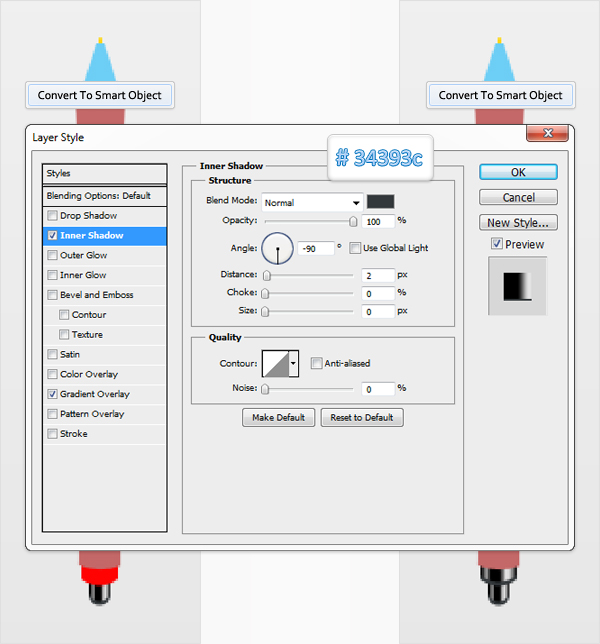
Gradient Overlay Blending Options Settings
Blend Mode: Normal
Opacity: 100%
Style: Linear
Angle: 0
Scale: 100%

Step 38
Move up to the next shape, the one that stands for the body of the pen. Turn it into ad Smart Object and add the Gradient Overlay properties shown below.
Gradient Overlay Blending Options Settings
Blend Mode: Normal
Opacity: 100%
Style: Linear
Angle: 0
Scale: 100%

Step 39
Pick the Rectangle Tool, create a 23 by 103px vector shape and place it as shown in the first image. Make sure that this path is still selected and go to go to Edit > Transform > Warp. Select Arc Upper from the Warp menu and enter -30 in the Bend box. In the end your path should look like in the second image. Control + Click on this path to load the selection then Control + Shift + Alt + Click on the shape edited in the previous step. Again, this will load a new selection with the area of intersection. With this selection still active move to the next step.

Step 40
First, delete the vector shape created in the previous step and make sure that your selection remains active. Now, select the body shape from the Layers panel and simply click Control + C and Control + V. Turn this new layer into a smart object and go to Filter > Noise > Add Noise. Set the Amount at 1% then check the Gaussian and the Monochromatic boxes. Open the Layer Style window for this new Smart Object and add the Color Overlay properties shown below.
Color Overlay Options Settings
Blending Mode: Normal
Opacity: 25%

Step 41
Set the foreground color at #121619. Pick the Rectangle Tool, create a 28 by 1px vector shape and place it as shown in the first image. Select this path and go to Edit > Transform > Warp. Select Arc from the Warp menu and enter -30 in the Bend box. Open the Layer Style window and add the Drop Shadow properties shown below. Now, your path should look like in the second image. Drag it right above the shape that stands for the overall body of the pen. Right click on it then click on Create Clipping Mask. In the end your path should look like in the third image.
Drop Shadow Blending Options Settings
Blend Mode: Normal
Opacity: 70%
Angle: 90 degrees
Distance: 1px
Spread: 0px
Size: 0px

Step 42
Select the yellow shape created in the thirty-fourth step and convert it to a Smart Object. Open the Layer Style window then add the Inner Shadow and the Gradient Overlay properties shown below.
Inner Shadow Blending Options Settings
Blend Mode: Normal
Opacity: 100%
Angle: -90 degrees
Distance: 1px
Choke: 0%
Size: 0px

Gradient Overlay Blending Options Settings
Blend Mode: Normal
Opacity: 100%
Style: Linear
Angle: 0 degrees
Scale: 100%

Step 43
Move up to the blue shape. First, replace the blue tint with #0000001. Next, pick the Pen Tool and draw two simple paths as shown in the following image. Fill the left one with #808487 and the right one with #c8c9cb.

Step 44
Select the two vector paths created in the previous step and merge them. Turn the resulting layer into a compound path and go to Filter > Blur > Gaussian Blur. Enter a 1px radius and click OK. Finally, turn this smart object into a clipping mask.

Step 45
Set the foreground color at #141414. Pick the Rectangle Tool, create a 16 by 1px vector shape and place it as shown in the first image. Select this path and go to Edit > Transform > Warp. Select Arc from the Warp menu and enter 10 in the Bend box. Drag it right below the blurred layer from the previous step. This will automatically turn it into a clipping mask. Select the small vector shape that stands for the nib and set its color at #111111.

Step 46
Pick the Rounded Rectangle Tool and set the radius at 2px. Create a 11 by 46 vector shape and set its fill color at #050507. Continue with the Rounded Rectangle Tool and create a second vector shape. Make it 9px wide and 42px tall. The fill color is not important. Bring the Layer Style window for this second shape then add the Gradient Overlay and Stroke properties shown below.

Gradient Overlay Blending Options Settings
Blend Mode: Normal
Opacity: 100%
Style: Linear
Angle: 90 degrees
Scale: 100%

Stroke Blending Options Settings
Size: 1px
Position: Inside
Blend Mode: Normal
Opacity: 100%
Fill Type: Gradient
Style: Linear
Angle: -90 degrees
Scale: 100%

Step 47
Select the second vector shape created in the previous step and duplicate it. Select this copy, open the Layer Style window and add the properties shown in the following images.
Gradient Overlay Blending Options Settings
Blend Mode: Normal
Opacity: 100%
Style: Linear
Angle: 90 degrees
Scale: 100%

Stroke Blending Options Settings
Size: 1px
Position: Inside
Blend Mode: Normal
Opacity: 100%
Fill Type: Gradient
Style: Linear
Angle: -90 degrees
Scale: 100%

Step 48
Pick the Rectangular Marquee Tool and create a 13 by 30px selection as shown in the first image. Select the vector shape created in the previous step, hold Alt and click on the Add Layer Mask button. Now, your shape should look like in the second image. Pick the Rectangle Tool and create a 9 by 1px vector shape. Fill it with black and place it as shown in the third image.

Step 49
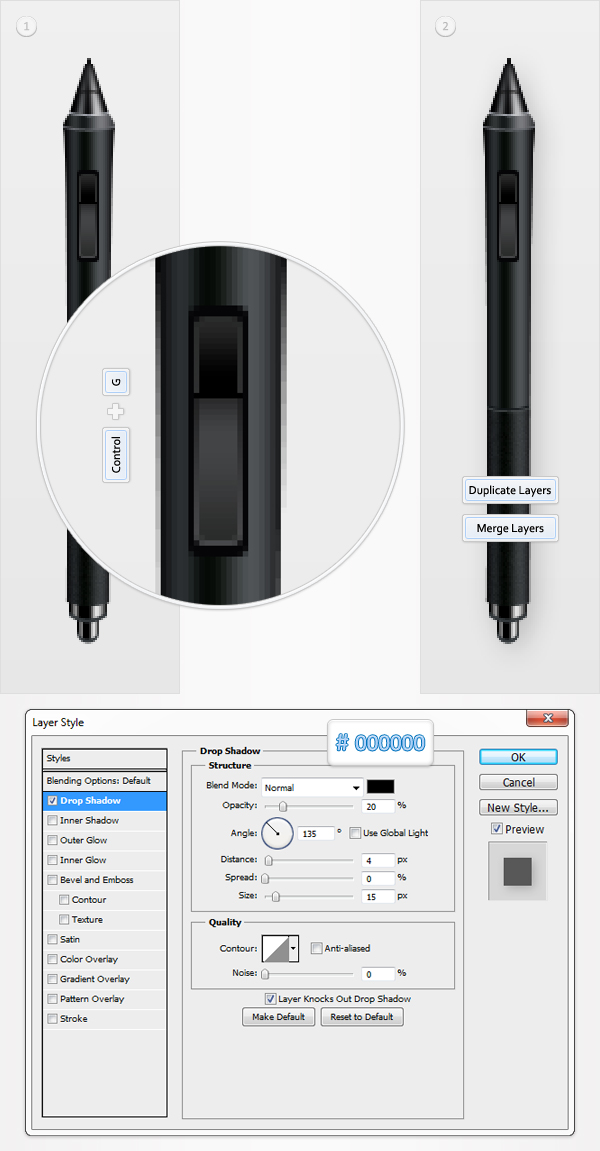
Select the layers created in the last three steps, group them (Control + G) and place them as shown in the first image. Now, select all the layers that make up the pen and duplicate them. Select these copies and merge them. Double click on the resulting layer to bring up the Layer Style window. Enter Drop Shadow properties shown below.
Drop Shadow Blending Options Settings
Blend Mode: Normal
Opacity: 20%
Angle: 135 degrees
Distance: 4px
Spread: 0px
Size: 15px
Step 50
Select all the shapes that make up the tablet (including the wire) and duplicate them. Select these copies and merge them. Open the Layer Style panel for the resulting layer and enter the Drop Shadow properties shown below.
Drop Shadow Blending Options Settings
Blend Mode: Normal
Opacity: 20%
Angle: 135 degrees
Distance: 4px
Spread: 0px
Size: 15px

Step 51
Pick the Rectangle Tool, create a 200px square and fill it with black. Make a copy of this vector shape and fill it with white. Pick the Type Tool, add some text and place it as shown in the third image. Have a look at the Character panel (image #3) and you will find all the properties that you need for the text. Merge the text and the white square. Select this merged layer along with the black square and hit Control + T. Rotate them -15 degrees.

Step 52
Select the white layer and go to Edit > Transform > Warp. Drag the handles as shown in the first image and click OK. Open the Layer Style window for this white layer and add the Gradient Overlay properties shown below. The yellow zero from the gradient image stands for opacity percentage.
Gradient Overlay Blending Options Settings
Blend Mode: Normal
Opacity: 100%
Style: Linear
Angle: 45 degrees
Scale: 150%

Step 53
Finally, select the black, rotated square. Turn it into a Smart Object and go to Filter > Blur > Gaussian Blur. Enter a 10px radius and click OK.

And We’re Done!
Here is how your final result should look.
VIP Download
Download the original .psd file for this tutorial here:

 Members Area Tutorial: How to Create a Flip Clock and Calendar in Adobe Photoshop
 Members Area Tutorial: Create a Realistic Eye Shadow Case From Scratch in Photoshop
 Members Area Tutorial: Create a Vintage Gun From Scratch Using Photoshop

Leave a comment
0 Comments:
No comments have been posted yet. Be the first!
Leave a Comment: