Members Area Tutorial: Create an Incredible Typographic Illustration
When used together, Illustrator and Photoshop are capable of producing amazing results. You could make just about any type of image that you can imagine. In this tutorial we are going to use these two programs to create a detailed type illustration using a couple of sketches that we will then turn into vector illustrations. From here we are going to add detailed effects and textures to complete our design.
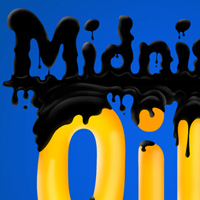
Final Image
As always, this is the final image that we’ll be creating:

Step 1
First off, we are going to start up Illustrator and open the ‘Vector_Type_Start’ file from the resources folder. You will notice in this file that there are three sketches in the document. These are the three main pieces of our design that we will be tracing. Once we have these separate elements we will then unify them in Photoshop so that we have complete control over all three parts.
The sketches are pretty rough, and that’s perfectly fine for what we will be using them for. All we need in these early steps are a guide that we can work from, and you don’t have to stick to the exact details of your sketches, as you may be able to improve upon them once you begin working. So feel free to work off of mine, or if you have some sketches of your own just scan them or take a picture and open it up with Illustrator.

Before we actually begin to trace the sketches, we want to lock this layer and then create a new layer just above the sketches that we can work on. Name this new layer ‘Midnight’ so that we can easily identify it. We will be creating a new layer for each of these three components that will ultimately form the whole image.
At this point, your layers palette should look like the image below:

Step 2
Make sure that you are on the ‘Midnight’ layer and select the Pen Tool (P). Set your colors so that there is no fill, and a solid black outline before beginning to trace the letters. It will help if you zoom in closely for this, so don’t be shy – get your zoom on!

Continue to trace the outline of the first word, but don’t worry too much about the counters (the openings inside of the letters) as we will be using the Pathfinder to knock these shapes out once we have the entire outline traced.

Once you have traced around the text, close the path and make sure to save your work before moving on.

Step 3
Next, while on the same layer we are going to trace around the inner parts of the letters that we will be knocking out of the shape.

Once you have traced these shapes, hold down the Shift Key and select each of them before grouping them together by pressing Command/Ctrl+G. Fill the newly grouped shape with a solid black color. We also want to select the outer part of the shape, which is already one group, and fill it with a medium gray or color of your choice.

Go to the Window menu from the top toolbar and select ‘Pathfinder’ which will bring up the palette if it isn’t already showing on your screen. Select the inner shapes, and then hold the Shift Key and select the outer shape before clicking on the second icon from the left, in the top row of the Pathfinder as shown in the image below:

Now you have used the Pathfinder to subtract the inner parts of the letterforms from the larger shape. Be sure to save your work once again before moving onto the next step.
Step 4
Turn the sketches layer back on to show the original sketches. Create a new layer above the ‘Midnight’ layer and name this layer ‘Oil’. On this layer we are going to repeat the process we went through in the first few steps to trace each of the letters. Start with the outside, then trace the inner shapes, and use the Pathfinder to subtract each of the inner pieces from the larger forms. This will work better if you work on each letter independently rather than grouping the shapes as we did in the previous step. Work on one letter at a time so that we will have the option to manually kern and control the spacing and size of each of the letters. You will however, need to group the letter ‘I’ together so that you have both parts linked.

After you have traced these letterforms select them all together and hold the Shift Key before dragging one of the four corners outwards to scale the size of the letters up. You may also want to move them a bit closer together but none of this is final. Keep in mind that the word ‘Midnight’ will be on top, dripping down onto the word ‘Oil’ so we will be making the bottom word larger once we are in Photoshop and begin to unify the elements.
Step 5
Add yet another new layer on top and trace the basic shapes of the barrel of oil. We just want to get the shapes and the basic colors here so that we can give it a basic color treatment before placing it and enhancing it further in Photoshop.

I have just used a basic gradient from gray to black to gray in order to fill in the main shape of the barrel, as well as a radial gradient to fill in the top. It doesn’t have to be anything fancy so you can add as much or as little detail here as you would like. You may notice that I have thickened the middle lines of the barrel, and it’s okay if they run over the edge a bit as we can trim this in Photoshop as well. Once you are happy with the look of the barrel be sure to save your work once again as we will now be working in Photoshop.

Now that we have traced our three main elements, take a look at the pieces that we have thus far – hopefully you will have something similar to the image below:

Step 6
Once Photoshop is ready to go create a new document that is about 1650×1065 pixels in size. We are now going to import our vector type from Illustrator into Photoshop. Simply copy the ‘Midnight’ text from Illustrator (Command/Ctrl+C) and paste it into your Photoshop document. Photoshop will ask if you want to paste this as a Smart Object, which is exactly what we want to do so click OK to paste the text. When bringing these into the document you will need to scale them down a bit in size so hold the Shift Key and drag inwards from one of the four corners of the image and rename the layer so it will be easy to find later on when we have more layers in our design.

Continue this process of copying the remaining elements from Illustrator and into Photoshop. I would recommend importing each of the three letters in the ‘Oil’ text one letter at a time so that we can modify the letters individually. You should now have something looking pretty much like our Illustrator document except now we can utilize all of Photoshop’s tools and tricks to bring it all together.

Now we are just going to select the first letter at the top of the Layers Palette , which in this case is ‘O’, and hold the Shift Key and select the two layers below it so that you’ve got all three letters selected. Next, press Command/Ctrl+G to put these three layers into a folder and call it ‘Oil’ before saving your document.
Step 7
Double click on the Background layer to unlock it and double click again to bring up the Layer Styles Options. Once the palette comes up, check off Color Overlay and apply a cool blue color (#0054FF). I like to apply certain colors this way because if we want to change it we just have to come back to the Layers Styles and move a slider as opposed to going back and forth between the Paint Bucket and your mouse.

Step 8
We are going to first focus on placing the elements and resizing them a bit before we go into the ‘Oil’ folder and add a bit of spacing between the individual letters. You should end up with something like this:

Step 9
Next, double click on the letter ‘O’ inside of our folder to bring up the Layer Styles. Check off ‘Color Overlay’ and use #D6F800 as a fill color. Once you have done this go ahead and select ‘Inner Glow’ and apply the following settings with the color #FF5F00 set to Multiply.

Once you have set that up, click OK to accept the changes. Hold down the Control Key and click on the ‘O’ Layer and select ‘Copy Layer Style’. Next, hold down the Shift Key and select both of the remaining two letters. Click on either one of those layers while holding down the Control Key before choosing ‘Paste Layer Style’ to apply the same setting to all three letters.

We can always modify this later once our design progresses but for now I want to use something bright that will create a nice contrast with the darker text above.
Step 10
Now create a new layer at the top of the Layer Palette and if you are using a Wacom Tablet you could use a brush for this part, but for now we will be using the Pen Tool instead as we have a bit more control over the lines.
What we want to do is begin to form some shapes just by making curved paths. Keep in mind that the goal here is to join the two words together and make it look like the oil is dripping down. I have started at the left and will work my way over using this technique.

As you go along, it’s okay to work in small sections at a time, but with each path that you create, be sure to right click and select ‘Make Selection’ before filling that selection with a solid black color using the Paint Bucket Tool.

Continue this process, and take your time here. We want to get the general shape and size of most of the drips down in this step. We can always add to or take away from this later using the Brush and Eraser. I have made a section above the letter ‘L’ where some of the oil really stretches out and touches down to the end of the letter, and also a little spot of oil on the letter ‘O’. In addition, you could draw a few small circles and fill them with black to simulate a few drops as shown here:

We will be making more oil kind of pooled at the bottom of the letters once we add the barrel, but for now we are looking pretty good.
Step 11
What we want to do from here is to move to the actual letters in ‘Midnight’ where we can add some additional drips and lines between the spaces of the letters to push this look a bit further. Start with the first letter and spend a little bit of time just deciding where some of the drips look good and really play around and have fun enhancing this look.

Continue to work on the letters and adding some drips while trying to envision where some of the oil would naturally sort of gather and extend down as it stretches.

Before moving on we are going to merge all of our drips if you haven’t already been doing this one a single layer. To do that, just select the first layer, hold Shift and select the last layer and then follow that by pressing Command/Ctrl+E. Rename the merged layer ‘Drips’ and save your work.
Step 12
Now we can begin airbrushing and shading the letters by adding some white and gray colors with our brush. Create a new layer and press ‘B’ to grab your Brush Tool and then make sure you have a mid-sized, soft, round brush and a solid white color in your palette. The image below shows my settings for the white brush.

Step 13
Before we can start shading there is one more thing we may want to do so really quick, I’m going to select both the ‘Drips’ and ‘Midnight’ layers in the document by clicking the layers while holding the Shift Key.

Pressing Command/Ctrl +G to place the layers into a Group Folder and name it ‘Midnight’ before dragging the folder down to the New Layer icon at the bottom of the Layers Palette. This will create a duplicate of the folder as shown here:

You can now turn off the original copy of the Group Folder as we will now be working from the duplicate. Right click on this duplicate layer and select ‘Merge Group’ to merge both of the layers inside of this folder together. You now have a merged duplicate of the drip layer with the Midnight text. This will make it a lot easier for us in the subsequent steps. Just move this layer second from the top in your palette so that the drips remain above the ‘Oil’ text.
Step 14
Go back to your new layer at the top of the Layers Palette. Remember that brush we made in the previous step? This is where we are going to put it to use. Hold the Command Key and click on the Midnight text (the new merged one) to activate the marching ants around the word and the drips simultaneously.

Begin to paint with your brush and lower the opacity a bit to start before painting just outside of the selection with the brush. You will see in the image where I have painted in a few highlights.

Step 15
We also want to make it look like the oil is overlapping the letters in some areas to really make it pop out from the background and I’m going to show you the basic technique to achieve this. On another new layer above your highlights layer grab the Pen Tool and lower the opacity of the Midnight text and the drips so that you can see the word ‘Oil’ below. Then, with your Pen trace around the contour of the letter where you want to add some highlights and shading, but leave a little bit of space between the two. This will help give a certain feeling of thickness of the oil.

Right click on the path after closing it around the area and choose ‘Make Selection’ to activate the selection. With your Brush Tool using a larger, low opacity brush you can begin to paint into these areas and blending it in how you see fit.

Continue to paint on this layer for the parts that overlap the letters, and on the ‘Highlights’ layer for the shading around the rest of the drips and text just like we did a couple of steps ago. These are the two techniques to employ when working on the majority of the piece so you can spend as much or as little time here as you like.

Step 16
At this point, I am pretty happy with what we’ve got and want to continue to detail this image a bit more by adding some colored light as well. Since our type is a bright color and all of the letters are next to each other they will give off a certain amount of light and this light would reflect off of the shiny black oil. I am going to use the same techniques to paint with a solid yellow color, sampled from the ‘Oil’ type and begin to brush this in as well.

Step 17
Next we will duplicate the ‘Oil’ folder and merge it like we did a few steps back so that we can work on a merged, duplicated version. Once you have done this, turn the original layer folder off. With the same soft white brush, create a new layer above the merged Oil layer and brush some highlights around the edges and inside of the letters in a few spots to add more depth.

Step 18
Before moving on to the next part I just want to clean up some of the layers a bit more so I am simply going to group the ‘Midnight’ layer with the highlights and the bit of yellow we added before so we can have those together. I am also going to put the ‘Oil’ text with the highlights we made for that and also place them into a Group Folder. The remaining folders can optionally be put into a folder of it’s own as well.

Step 19
Now we can turn on the ‘Barrel’ layer and place it behind the word ‘Oil’ on the bottom – I have also scaled it down a bit to fit in nicely. Using the same techniques we used on the drips earlier, we are going to make some shapes and add some highlights underneath the ‘Oil’ and ‘Barrel’ layers, as well as making one above it to paint in little splashes where the oil will be on top of the letters.

Step 19
We will now add some texture to the piece and we can start by grabbing a free metal grunge texture from Stock Xchange Photos by following this link:
(http://www.sxc.hu/browse.phtml?f=download&id=1283547)
Bring the image into the Photoshop document and desaturate it by pressing Command/Ctrl+Alt+U and moving the Saturation slider all the way to the left. Next, press Command/Ctrl+T to initiate a Free Transform and drag one of the four corners of the image inwards while holding the Shift Key to scale the texture down a bit. Place this layer above the ‘Barrel’ layer as shown in the image below:

Next, change the Blending Mode of this layer to Multiply. Click on the ‘Barrel’ layer to activate your selection and then click on the Layer Mask icon at the bottom of the Layers Palette.

Now I am just going to make a few last changes to the design before saving it. I am going to darken the background a bit more and maybe make the text a little bit larger. After this I will just crop the image to trim some of the extra space on the sides. Aside from that it’s time to wrap this one up so thank you for following along and I hope that you have found this tutorial to be useful!
VIP Download
Download the original .psd file for this tutorial here:

 Members Area Tutorial: Create an Amazing 3d Text Effect
 Members Area Tutorial: Create Super Realistic Hand-Sketched Text
 Members Area Tutorial: Design a Frightening, Textured Photo Manipulation

Leave a comment
0 Comments:
No comments have been posted yet. Be the first!
Leave a Comment: